Learn how to use Wave invoice integration recipes with monday.com
Introduction
Wave invoice integration app provides 3 integration recipes in addition to the board view. The
recipes are tailored to fit your CRM, sales & business process.
Note: Board columns of type phone, country & location are not supported by
monday.com in integration recipes. Only column types of text, numbers, status & link are allowed.
Wave monday.com Integration recipes demo
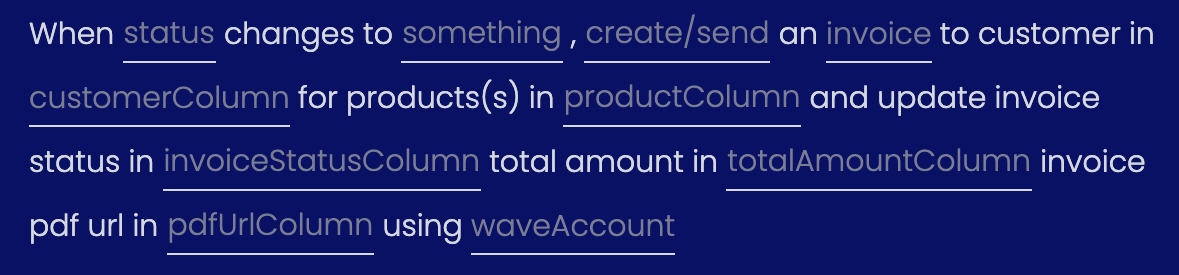
1 - Create/Send Invoice & Update Invoice Status
Description
This recipe will create/send an invoice to the customer in
customerColumn for the products in productColumn. Watch a
demo of this recipe.
Fields
status: This is a column of type status that will trigger the automation.
someting: This is one of the list of status labels for the trigger.
create/send: You can choose one of 'create' OR 'create & send'. To be able to
'create & send' make sure your wave account supports sending email invoices.
invoice: This is a mapping of the columns in your board to wave invoice
properties. More details is in the Invoice mapping section of this doc
here.
customerColumn: This column can be a text column or a connected column.
Text column: The text should match the customer name in wave.
Connect board column: The connected board should have customers imported/created using wave
board view. If customerColumn or productColumn is a 'Connect board column', this recipe
requires customer & product board view's to be set up as described in
FAQ: Wave invoice integration.
productColumn: This column can be a text column or a connected column.
Text column: The text should match the product name in wave.
Connect board column: The connected board should have products imported/created using wave
board view.
invoiceStatusColumn: This is the status of the invoice after its been created.
This column will be updated by the integration recipe. You do not have to change this.
totalAmountColumn: This is the total amount of the invoice including taxes &
discounts. This column will be updated by the integration recipe. You do not have to change
this.
pdfUrlColumn: This is the url to download the invoice as a pdf. This column
will be updated by the integration recipe. You do not have to change this.
waveAccount: This is the wave account to create the invoice. The wave account
linked during the 'wave integration board view' setup will be displayed.
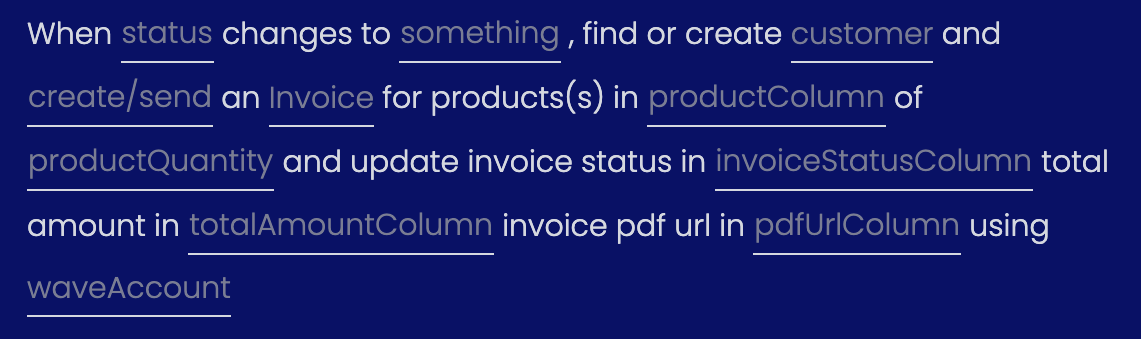
2 - Find/Create Customer, Create/Send Invoice
Description
This recipe will try to find a customer using email & name field in customer mapping. If no
customer was found will create a new customer, And create/send an invoice to the customer for the
products in linkedProductColumn. Watch a
demo of this recipe.
Prerequisite
If customerColumn or productColumn is a 'Connect board column', this recipe requires customer &
product board view's to be set up as described in
FAQ: Wave invoice integration.
Fields
status: This is a column of type status that will trigger the automation.
someting: This is one of the list of status labels for the trigger.
customer: This is a mapping of the columns in your board to wave customer
properties. More details is in the Customer mapping section
here.
create/send: You can choose one of 'create' OR 'create & send'. To be able to
'create & send' make sure your wave account supports sending email invoices.
invoice: This is a mapping of the columns in your board to wave invoice
properties. More details is in the Invoice mapping section of this doc
here.
productColumn: This column can be a text column or a connected column (sub item
is supported).
Text column: The text should match the product name in wave.
Connect board column: The connected board should have products imported/created using wave
board view.
productQuantity: This column can be a text, number column (SubItem is
supported).
invoiceStatusColumn: This is the status of the invoice after its been created.
This column will be updated by the integration recipe. You do not have to change this.
totalAmountColumn: This is the total amount of the invoice including taxes &
discounts. This column will be updated by the integration recipe. You do not have to change
this.
pdfUrlColumn: This is the url to download the invoice as a pdf. This column
will be updated by the integration recipe. You do not have to change this.
waveAccount: This is the wave account to create the invoice. The wave account
linked during the 'wave integration board view' setup will be displayed.
3 - Create/Send Invoice
Description
This recipe will create/send an invoice to the customer in
customerColumn for the products in productColumn. The recipe
will not update any columns in the board.
Prerequisite
If customerColumn or productColumn is a 'Connect board column', this recipe requires customer &
product board view's to be set up as described in
FAQ: Wave invoice integration.
Note: All the fields of this recipe is described in the 1st recipe.
4 - Update Invoice Status
Description
This recipe will periodically update the status of the invoice in
invoiceStatusColumn.
Note: All the fields of this recipe is described in the 1st recipe.
Invoice Mapping
All 3 recipes have an invoice field, this is a mapping of the columns in your board to wave
invoice properties. The image below shows all the fields mapped. The fields in the left in the
image are wave invoice properties & the fields selected are columns of the board.
Note: The first column of the monday.com board will show as 'Name' in the
mapping.
Even though you can create a mapping without specifying any fields, we recommend at-least mapping
the 'Invoice Number'.
Invoice Number: Required for easy invoice identification
The 2nd recipe has customer filed, this is a mapping of the columns in your board to wave customer
properties. The image below shows all the fields mapped. The fields in the left in the image are
wave customer properties & the fields selected are columns of the board.
Note: The first column of the monday.com board will show as 'Name' in the
mapping.
Customer Name & Customer Email are required filed. The recipe (
Find/Create Customer
) uses name & email to find the customer. If the customer is not found, name & email are required
to create a new customer.